Project management apps work best when they match how your team plans, communicates, tracks work, and makes decisions. The right choice is less about the longest feature list and more about whether the tool fits your workflow, budget, integrations, and adoption habits.
If you’re comparing tools, the search can feel messy fast. One app looks great for task management, another wins on dashboards, and another promises an all-in-one workspace. This guide helps you compare project management apps by workflow type, team size, cost, collaboration needs, and rollout risk, so you can choose a tool your team will actually use.
Why Choosing A Project Management App Feels Impossible
The project management software market has grown into a large category, with tools built for solo freelancers, small teams, product teams, agencies, operations groups, and enterprise Project Management Office(PMO) teams. That growth gives you more choice, but it also makes comparison harder. Many apps now offer task lists, Kanban boards, timelines, comments, files, automations, dashboards, templates, and integrations. On a feature checklist, they can start to look almost identical.
The real problem is that feature checklists don’t show how your team behaves under deadline pressure. A team that plans by milestones needs a different experience than a team that moves cards across a Kanban board all day. A manager who needs cross-project reporting has different needs than a freelancer who just wants deadlines, notes, and client approvals in one place. Poor fit creates duplicate work, missed updates, slow adoption, and the familiar phrase nobody wants to hear: “Where is that task again?”
Know Your Workflow Before You Browse
Before you compare project management apps, map the way work already moves through your team. Start with five practical questions: who creates tasks, who assigns them, who approves work, where files live, and how deadlines change. Then look at your current communication pattern. If decisions happen in chat, email, meetings, and documents, your project tool must reduce scattered updates instead of becoming one more place to check.
Your audit should also separate must-have needs from nice-to-have features. Task management, project views, collaboration, integrations, reporting, and time tracking often sit near the top of buyer priorities. That doesn’t mean you need every feature on day one. A small creative team may need a clean board and file comments, and a delivery team may need dependencies, workload views, milestones, and reporting that leadership can read without asking for a manual status update.
The Four Workflow Archetypes And Which App Style Fits Each
Most teams fall into one of four workflow archetypes. Visual teams prefer boards, simple statuses, and drag-and-drop movement, so tools built around Kanban boards often fit well. Planning-led teams need Gantt charts, dependencies, milestones, and a timeline view that shows how one delay affects another. Sprint-driven teams need backlog management, sprint planning, issue tracking, and predictable handoffs.
Hybrid teams need more flexibility because they mix planning styles across departments. Product teams may use sprints, marketing teams may use calendars, operations teams may use recurring checklists, and leadership may want portfolio reporting. Apps like Trello tend to feel lighter and more visual, Jira often suits software teams using agile workflows, Smartsheet and Wrike lean toward structured planning, and ClickUp or Notion can appeal to teams that want tasks, documents, and workflow customization in one workspace. The best match depends on how much structure your team accepts without slowing down.
Small Teams And Freelancers: Simple Tools That Won’t Overwhelm
If you work solo or lead a small team, your project management app should make work easier within the first few days. You need a place for tasks, due dates, notes, files, and client or teammate updates. A lighter tool can beat a feature-packed system if your projects don’t need layered approvals, resource plans, or advanced dashboards. Trello, Asana, Notion, Basecamp, and similar tools often appear in small-team comparisons because they can keep work visible without demanding a long setup cycle.
Free plans can be useful at this stage, but they aren’t the same as a long-term cost plan. Seat limits, automation limits, storage caps, reporting restrictions, guest access rules, and integration limits can change the total value. If you expect to add contractors, clients, or more internal users, check how pricing scales before your team builds months of project history inside the app. A cheap tool becomes expensive when it forces manual status reports, duplicate data entry, or a messy migration later.
Growing Organizations: Collaboration And Cross-Project Visibility
Once a team grows past a few people, the problem shifts from “Can we track tasks?” to “Can everyone see the right work at the right time?” Growing organizations need shared dashboards, project templates, dependency tracking, role-based views, and integrations with chat, file storage, calendars, and Customer Relationship Management(CRM) software. The app should show who owns what, which milestones are at risk, and where work is stuck. If managers still need to chase updates in separate channels, the tool isn’t doing enough.
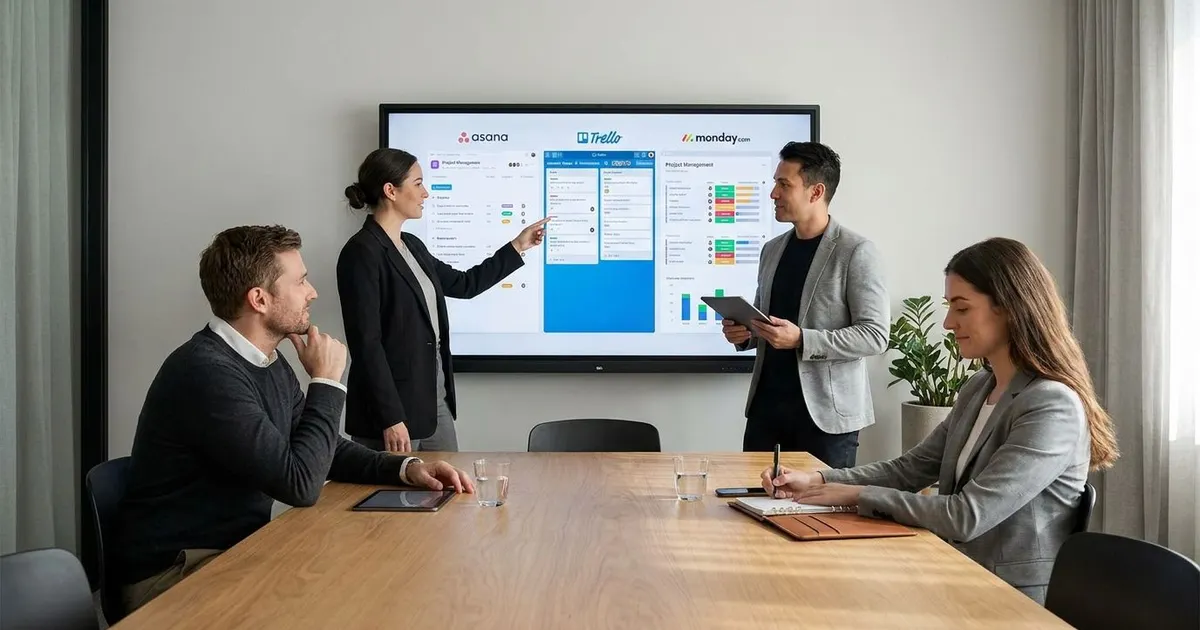
Asana, monday.com, ClickUp, and Wrike often enter the conversation at this stage because they support multiple project views and broader collaboration patterns. Your comparison should focus on visibility and maintenance effort. Ask whether a project manager can build a useful dashboard without constant manual cleanup. Also ask whether team members can update work quickly from the view they prefer, whether that’s a list, board, calendar, workload view, or timeline.
Enterprise Complexity: Customization, Security, And Portfolio View
Enterprise teams need more than task tracking. They often need permission controls, portfolio views, standardized templates, workload planning, approval paths, reporting across departments, and a way to manage different project types under one system. The wrong tool can create separate workspaces that don’t speak to each other. The right tool gives leaders a reliable view across teams without forcing every department into the same daily process.
Security and administration also matter more at this level. You should review user roles, data export options, access controls, account management, and integration governance before a wide rollout. Enterprise buyers often compare Wrike, Smartsheet, Jira, Asana, monday.com, and similar platforms through verified review sites and analyst review portals. The buyer decision usually comes down to fit across departments, reporting depth, admin control, and how much configuration the team can maintain over time.
The Hidden Cost Factor: Free Plans, Integrations, And The True Price
The sticker price rarely tells the full story. Many paid small-business plans across leading project management apps cluster around a per-user monthly price when billed annually, but the real cost depends on what your team must unlock. Time tracking, advanced reporting, automations, guest permissions, workload management, forms, artificial intelligence(AI) features, and integrations may sit behind higher tiers. A plan that looks affordable for ten users can feel very different at thirty, fifty, or one hundred users.
Count the operational cost too. If a tool doesn’t integrate with your email, chat, calendar, file storage, or customer system, your team may copy updates by hand. If reporting takes hours every week, that time belongs in your cost comparison. If your team needs outside collaborators, review guest pricing and access rules before signing up. Good cost planning means comparing the monthly bill, the setup effort, the time saved, and the cost of switching if the tool stops fitting your workflow.
The Adoption Factor: Test A Tool Without Losing Your Team
A project management app fails when people don’t use it consistently. Adoption depends on speed, clarity, trust, and whether the tool solves a problem team members already feel. A pilot should include real work, not a sample board nobody cares about. Use one active project, invite the people who will update tasks daily, and measure whether the tool reduces meetings, status questions, missed deadlines, and scattered files.
Set rules before the pilot starts. Decide where tasks are created, where comments go, how due dates are changed, who closes work, and what must appear in reports. Keep the trial short enough to maintain focus, but long enough to include handoffs, edits, and deadline changes. If the tool needs too many workarounds during the trial, it will likely create more friction after launch.
Side-By-Side Feature Snapshot
A comparison table helps you narrow the field, but don’t treat it as a final verdict. These tools can serve different teams well, and their feature sets change as product teams release updates. Use the snapshot as a starting point for your own trial plan. Then compare the tools against your workflow audit instead of against a generic checklist.
The strongest fit is usually the app that handles your daily work with the least explanation. If your team needs visual flow, a board-first tool may win. If leadership needs cross-project reporting, dashboards and portfolio views become more useful. If your team mixes tasks, documents, and knowledge management, an all-in-one workspace may reduce tool switching.
Project Management App Fit Snapshot
|
Tool |
Common Fit |
Useful Strength |
Watch Before Choosing
|
|
Asana |
Teams that need task clarity and shared project views |
Lists, boards, timelines, goals, and collaboration |
Review reporting and tier limits for larger teams |
|
monday.com |
Teams that want customizable boards and visual workflows |
Flexible columns, dashboards, automations, and templates |
Configuration can expand quickly without ownership rules |
|
ClickUp |
Teams that want tasks, documents, goals, and views in one place |
Multiple views, workflow customization, and broad feature coverage |
Feature depth can require careful setup and training |
|
Trello |
Small teams and visual workflows |
Simple Kanban boards and low learning curve |
Advanced reporting and portfolio needs may require add-ons |
|
Jira |
Software teams using agile workflows |
Backlogs, sprints, issue tracking, and developer workflow support |
Non-technical teams may find setup more demanding |
|
Wrike |
Structured teams that need planning, reporting, and visibility |
Dashboards, workload views, approvals, and cross-project tracking |
Setup choices should match team governance from the start |
|
Smartsheet |
Teams that like spreadsheet-style planning with project controls |
Grid views, automation, reporting, and structured project plans |
Board-first teams may prefer a more visual daily workspace |
|
Basecamp |
Small teams that value simple communication and project spaces |
Messages, to-dos, files, schedules, and straightforward organization |
Advanced workflow automation and portfolio reporting are limited compared with larger platforms |
Making The Final Call With A Practical Scorecard
Once you have a shortlist, score each app against the way your team works. Use simple categories: workflow fit, ease of use, collaboration, integrations, reporting, cost, security controls, mobile access, and migration effort. Give each category a score from one to five, then weight the categories that matter most. A field service team may weight mobile access higher, and a leadership team may weight reporting higher.
Don’t let one flashy feature outweigh daily usability. A project dashboard is useful only if the underlying tasks stay accurate. Automation saves time only if the team agrees on the process it automates. The winning app should reduce status chasing, make ownership visible, support your planning style, and give your team fewer places to search for the truth.
What Should You Check Before Choosing A Project Management App?
- Match team size and workflow style
- Check task views, reporting, and collaboration
- Verify chat, email, calendar, and file integrations
- Compare seat tiers, limits, and add-ons
- Run a trial with real users
Choose The Tool Your Team Will Actually Use
The best project management apps don’t force your team to work in a way that feels unnatural. They make ownership visible, reduce scattered updates, support the planning style you already rely on, and scale without surprising you with avoidable cost or complexity. Start with your workflow audit, narrow the choices by team size and project type, then test the finalists with real work. If the tool helps people update work faster, find information sooner, and make cleaner decisions, you’ve found a better fit than any generic “best app” ranking can offer.
References:
- Grand View Research: Project Management Software Market
- Project Management Institute: Pulse Of The Profession Library
- Capterra: Project Management Software User Survey
- G2: Project Management Software Category
- TrustRadius: Project Management Software
- Gartner Peer Insights: Project And Portfolio Management Software
- Reddit: r/projectmanagement.